In real-time 3D development, game design, and digital asset interchange, Autodesk FBX (Filmbox) and Wavefront OBJ serve as two of the most ubiquitous file formats.
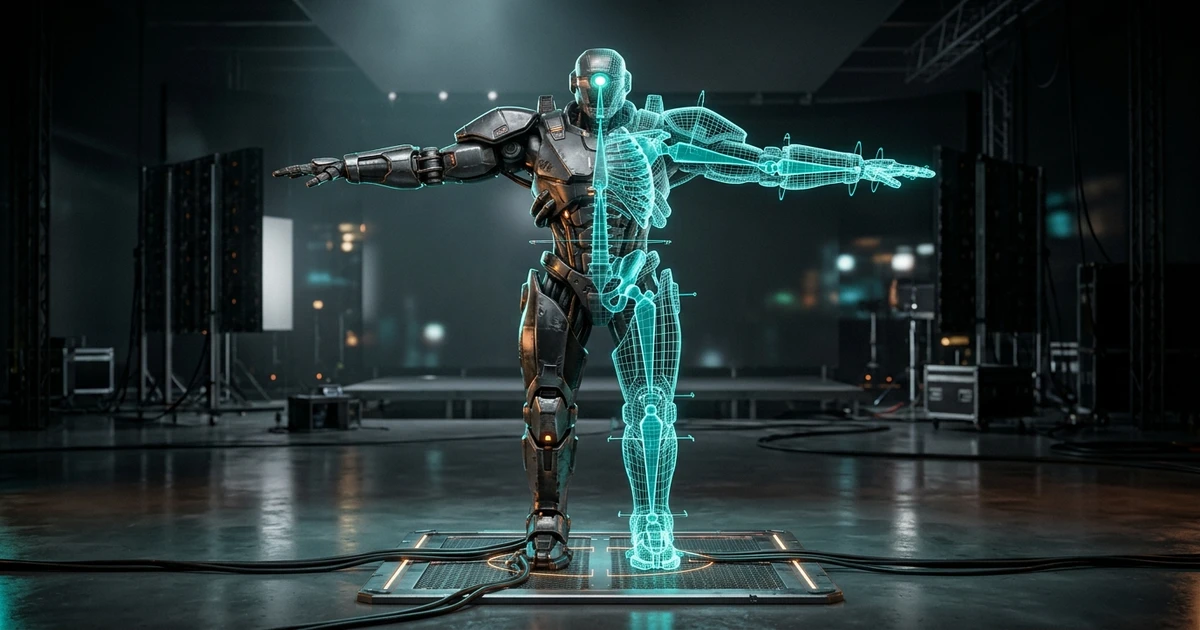
While FBX is a complex, proprietary container designed to encapsulate skeletal armatures, inverse kinematics (IK) constraints, skinning weights, multiple animation clips, and embedded textures, Wavefront OBJ is an open, human-readable format that stores only static geometric data (vertices, UV coordinates, normals, and material definitions via .mtl).
When you need to import character assets into 3D printing slicers, CAD programs, or lightweight rendering engines that do not support skeletal animation, converting FBX to OBJ strips away unnecessary data overhead and eliminates compatibility issues.
Architectural Comparison: FBX vs. Wavefront OBJ
Understanding what each format contains ensures you do not inadvertently lose critical asset features:
| Feature Dimension | Autodesk FBX | Wavefront OBJ |
|---|---|---|
| Primary Use Case | Skeletal animation, character rigs, AAA game engines | Static geometry, 3D printing, universal interchange |
| Format Specification | Proprietary binary / ASCII (Autodesk SDK) | Open ASCII standard (Wavefront Technologies) |
| Skeletal Armature and Bones | Fully supported (Joint hierarchies, bind poses) | Not supported (Bones are discarded) |
| Animation Tracks | Multiple takes, keyframes, morph targets | Not supported |
| Texture Embedding | Can pack binary texture bitmaps inside file | References external image files via companion .mtl |
| Multi-Material Mapping | Supported via material index layers | Supported via usemtl declarations |
[Autodesk FBX Container]
├── Static Polygonal Mesh (Vertices, UVs, Normals)   ────► Converted to Wavefront OBJ
├── Skeletal Bone Hierarchy                          ────► Stripped (Ignored)
├── Keyframe Animation Takes                         ────► Stripped (Ignored)
└── Embedded PBR Texture Bitmaps                     ────► Extracted to PNG / JPG
Step-by-Step Conversion Workflow
Follow these instructions to extract static geometry from complex FBX models using the FreeConvert3D 3D Converter:
- Upload FBX File: Drag your
.fbxbinary or ASCII asset into the upload panel. - Pose Selection: If your FBX asset contains character animation or a rigged pose, ensure the mesh is in its desired rest position (T-Pose, A-Pose, or frozen keyframe). Static converters bake the active vertex deformation directly into the static geometry.
- Handle Embedded Textures: Choose whether to extract embedded textures into standalone PNG/JPG images or convert to an untextured geometric mesh suitable for 3D printing.
- Export OBJ: Click Export OBJ. The converter generates a clean
.objfile containing all vertex positions ($v$), texture coordinates ($vt$), vertex normals ($vn$), and polygonal face definitions ($f$).
If your downstream goal is preparing the character or prop for additive manufacturing, navigate directly to our OBJ to STL Conversion Guide or slice the mesh in our integrated workspace.
Common Conversion Artifacts and How to Fix Them
| Defect | Underlying Root Cause | Corrective Action |
|---|---|---|
| Exploded or Deformed Geometry | Rigged character has unapplied bone transforms or non-uniform scaling | Apply all transforms ($Ctrl+A$ in Blender) and bake skinning modifiers before exporting |
| Flipped or Missing Faces | Negative scale factor on parent bone inverting polygon winding | Flip normals or run normal recalculation in the live 3D viewer |
| Missing Materials in Destination App | Associated .mtl file not kept in the same directory as the .obj | Keep the .obj and its companion .mtl in the exact same folder with identical relative paths |
| Gigantic File Size | ASCII OBJ represents floating-point coordinates as plain text | For real-time web applications, consider converting from GLB to FBX instead of raw ASCII OBJ |
Python Automation: Batch FBX to OBJ Conversion
For technical artists managing thousands of game assets across Unity or Unreal Engine pipelines, batch conversion can be automated using headless Blender via Python:
import bpy
import sys

# Usage: blender --background --python fbx_to_obj.py -- input.fbx output.obj
argv = sys.argv[sys.argv.index("--") + 1:]
input_fbx = argv[0]
output_obj = argv[1]

# Clear default scene objects
bpy.ops.wm.read_factory_settings(use_empty=True)

# Import FBX asset
bpy.ops.import_scene.fbx(filepath=input_fbx)

# Select all imported meshes and apply transforms
bpy.ops.object.select_all(action='SELECT')
bpy.ops.object.transform_apply(location=True, rotation=True, scale=True)

# Export static Wavefront OBJ
bpy.ops.wm.obj_export(filepath=output_obj, export_selected_objects=True)
print(f"Successfully converted {input_fbx} -> {output_obj}")
Frequently Asked Questions
Will converting FBX to OBJ delete my character’s rigging?
Yes. Wavefront OBJ has zero support for bone armatures, vertex weights, or keyframe animations. Converting an FBX character to OBJ permanently bakes the current pose into a static polygonal shell. Always retain your original FBX file if you plan to edit animations later.
Can I 3D print an OBJ file directly?
Most modern slicers (including PrusaSlicer, Cura, OrcaSlicer, and Bambu Studio) natively accept OBJ files alongside STL and 3MF. However, ensure the mesh is manifold and watertight. Check our Watertight Mesh Repair Guide to eliminate holes before printing.
How do I scale an FBX file down to real-world millimeters?
Game engines like Unreal Engine use centimeters ($1\text{ unit} = 1\text{ cm}$), Unity uses meters ($1\text{ unit} = 1\text{ m}$), and 3D printing slicers use millimeters ($1\text{ unit} = 1\text{ mm}$). If an imported model appears 1000 times too large or small, adjust the unit scale during import in the FreeConvert3D Viewer.